About Proctoring
Proctoring involves the monitoring of certain tests you complete in your application, using your device’s camera, microphone, and screen sharing. This enhances the fairness of our assessment process, ensuring that all candidates are evaluated equally by safeguarding against others gaining an undue advantage from dishonest behavior.
Monitoring Setup Process
Before beginning the assessments you have been invited to complete, you will be asked to set up the monitoring permissions. These are set by the recruiting organization, so you may not be asked to complete all of these.
To ensure transparency and privacy, you will be shown exactly what is being recorded before the proctored tests begin. The camera light will also remain on during the recording.
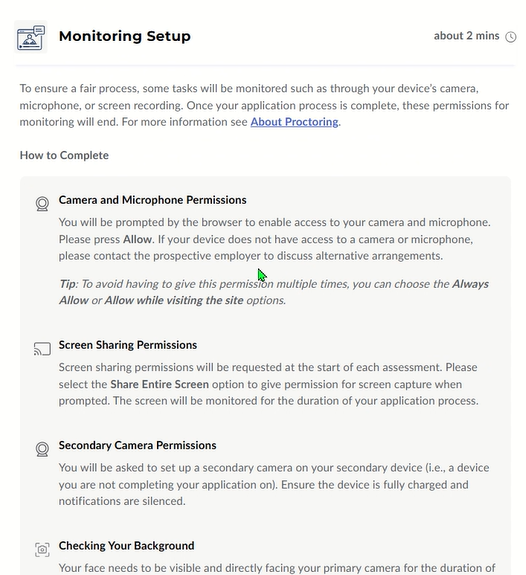
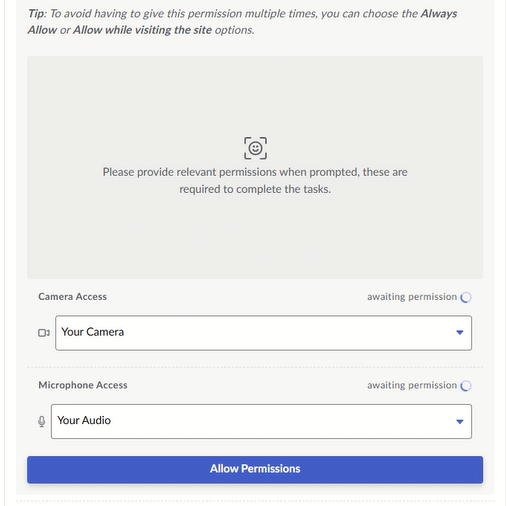
Follow the prompts to allow the assessment centre permission to use your camera, microphone and to record your screen.
Secondary camera access
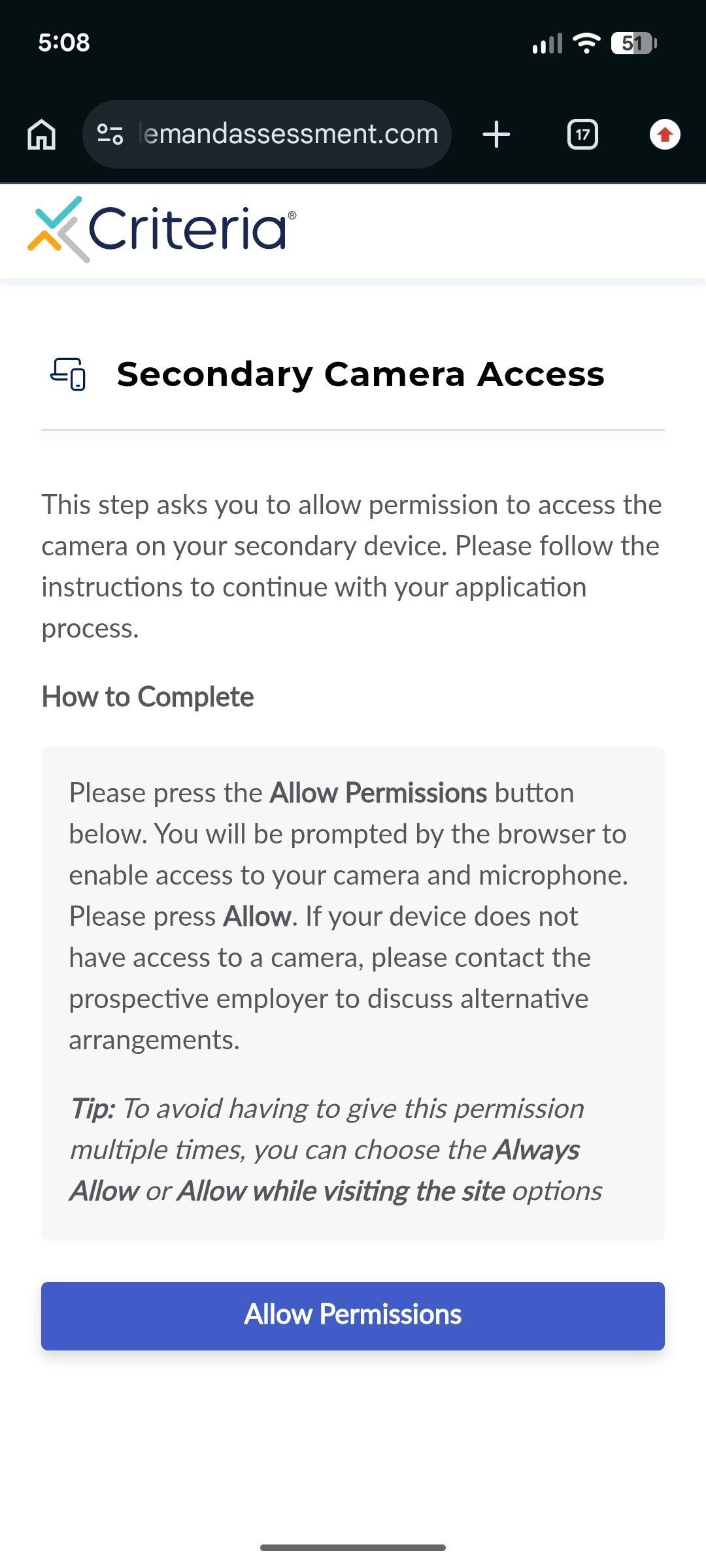
This step asked you to allow permission to access the camera on your secondary device (as well as the camera on your primary device, where you will be completing the testing).
Once camera access has been granted, position your secondary device so that it can see the side of your face, your workspace and your primary device's screen.
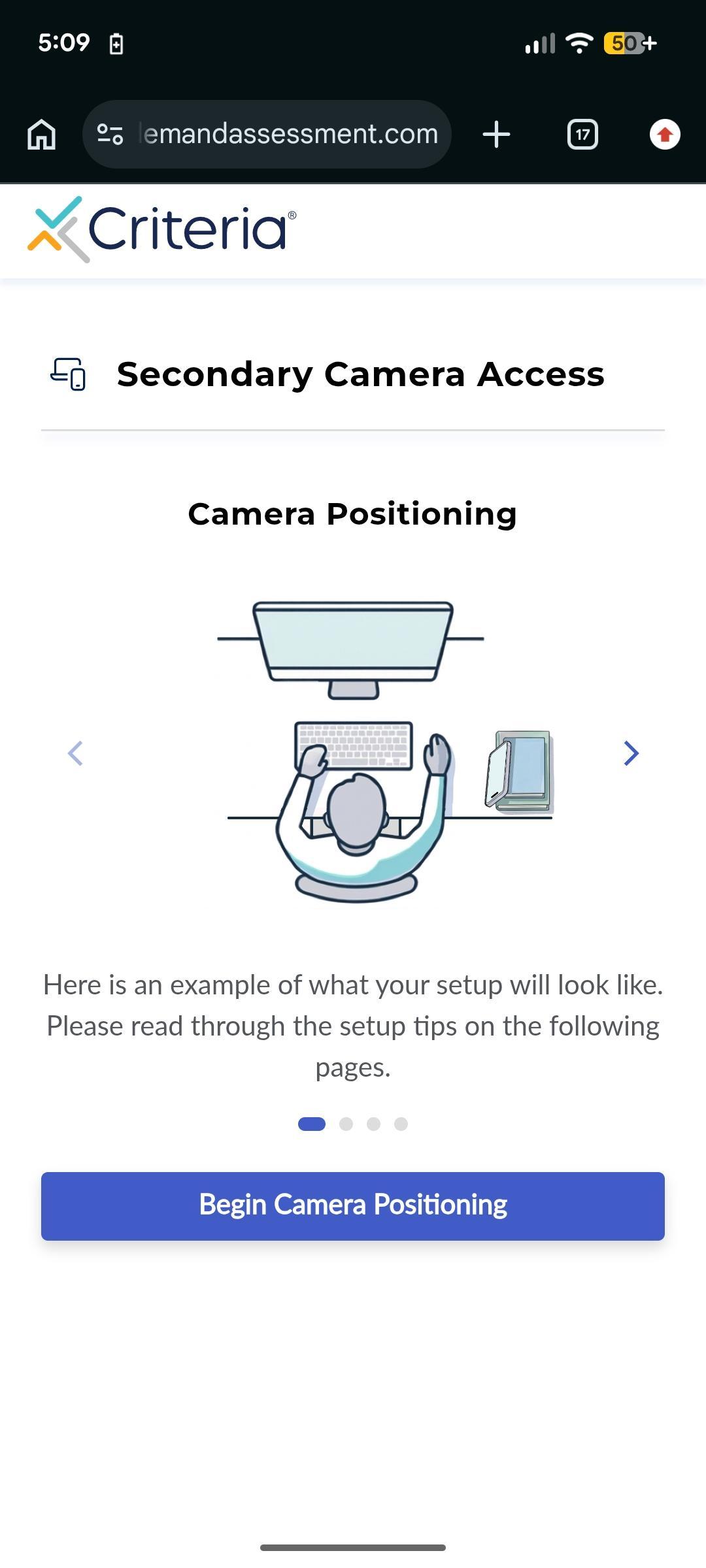
✅ Use something stable like books to prop up your device. Make sure it won't fall or be knocked over during testing.
✅ Position your device about one arm's length away from you, to the side - not directly in front.
✅ Position your device at a 45-90 degree angle to the side. It should have a clear view of your workspace - your screen, hands, and the side of your face should be visible.
Checking background
During the setup process, the assessment centre will check your background for other people or motion that could indicate other people.
*️⃣ Hide or remove anything that might be mistaken for a person, such as posters.
*️⃣ Position yourself as the only person visible to the camera. Check that your room is well-lit, with lighting in front of you.
*️⃣ Adjust the camera position to capture mostly your face with a plain background.
*️⃣ Reflective surfaces can trigger false detections. Hide, remove or move away from reflective surfaces, such as TV screens or windows.
*️⃣ Close all background applications using the camera. You may need to restart your device.
Screensharing
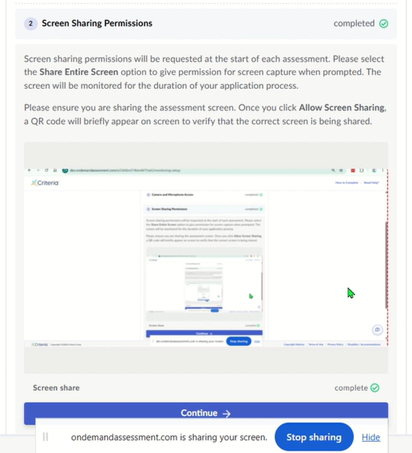
Before you begin each assessment, you will be asked to allow screensharing.
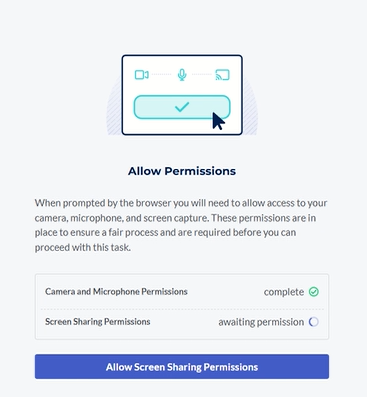
The screensharing message remains on screen will your screen is being shared. Click Hide if you do not wish to view this.

Frequently Asked Questions
Can I request an accommodation for a proctored assessment?
What happens to my recordings and who can review it?
What are the technical requirements needed for proctoring?
Most laptops these days have built-in webcams which you may or may not even be aware of. If you have never used the webcam facility, the Criteria proctoring system automatically detects whether a webcam is connected to a computer and enables the user to check video quality. It’s a very easy process and doesn't require technical skill! For an optimal experience, we recommend using the most up to date version of one of the following browsers:
Google Chrome
Microsoft Edge
Apple Safari
Troubleshooting
For further assistance, check out our troubleshooting guide.
To chat to the Candidate Support Bot, click the ? icon in the bottom right of the assessment centre. The bot is available 24/7 and resolves most queries straight away.
